





Mob radar and Seek
The Orbital Atlas mob radar: faces for mobs from any mod, bosses, crowds, pets and players, and Seek for finding nearby creatures.
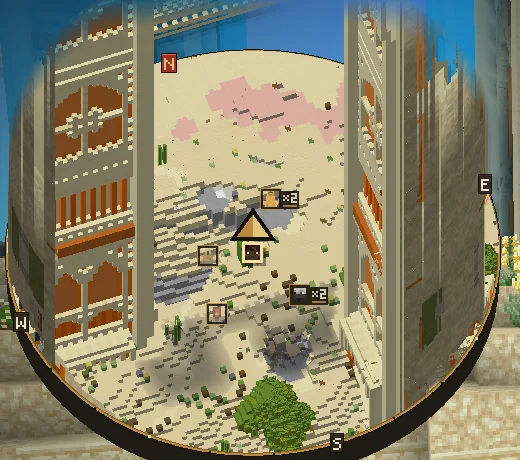
The radar shows players, mobs and pets on both maps. Mob icons are made in game from each mob's own model and textures, so mobs from any mod get a proper face, drawn in your resource pack.
What the radar shows#
- Players, bosses, hostile, passive and pet mobs each have their own colour.
- Bosses stand out. A boss gets a violet outer ring and a slow pulse (Boss glow), and stays visible even behind cover.
- Crowds of the same mob stack into one icon with a count on the world map (Stack crowds). Hover an icon for its name.
- Pets. Tamed wolves, cats and parrots have their own markers, including pets that belong to other players.
- Player names add a name slip beside each player.
The radar reads only creatures your own game has loaded. It never finds mobs in chunks your game has not received, and server operators can limit it (see fair-play rules). A radar setting cannot override a server rule.
On the minimap and the world map#
The two maps show the radar differently, so each stays readable:
| Shown | Minimap | World map |
|---|---|---|
| Faces | Mobs within Faces within (32 blocks by default) get a face; others become small dots in their colour. Players and bosses get faces first. | Framed faces, with stacks and counts for crowds. |
| Hostile mobs | Every loaded hostile mob. | Hostile mobs within 24 blocks of you; bosses always. |
| Passive mobs | Shown with Minimap shows: All. | Shown. |
Minimap shows keeps the minimap calm: All (the default), Threats (no passive mobs on the minimap) or Minimal (only players, bosses, pets and hostile mobs within 16 blocks, on both maps). Height range limits how far above and below you ordinary mobs appear: ±16, ±32 (the default), ±64 or ±128 blocks.
Style chooses how players and mobs are drawn: Tags (the default), Medallions or Dots, in three Sizes. Heads float over the map or are printed on it.
Seek#
Open Seek on the world map to see the creatures loaded near you in the Nearby list. Each row shows the kind of creature, how many there are, and the nearest one's distance and direction. Filter the list, then choose a kind to seek it on both maps.
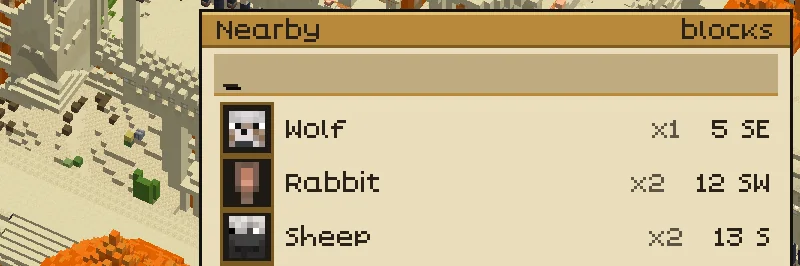
To follow one particular creature, right-click its face on the world map and choose Seek this mob. Choosing a kind replaces a single-mob seek, and the other way round.
Open Seek again and choose Clear seek, or press Esc while its list is open, to stop. A single-mob seek also ends when that creature dies, despawns, leaves radar range or is no longer allowed by the server's rules. Seek is not saved between sessions.
Radar settings#
All radar settings are in the Radar group of the settings drawer. See Settings: Radar for every option and its default.