





Minimap
The Orbital Atlas 3D minimap: Quick Tune, automatic zoom for walking, riding, flying and combat, orientation, styles and the info plaque.
The minimap is a small 3D model of the ground around you, drawn from the land you have explored in your resource pack's textures. Your marker shows your position and heading; waypoints, nearby creatures, players, teammates and vehicles appear around it.
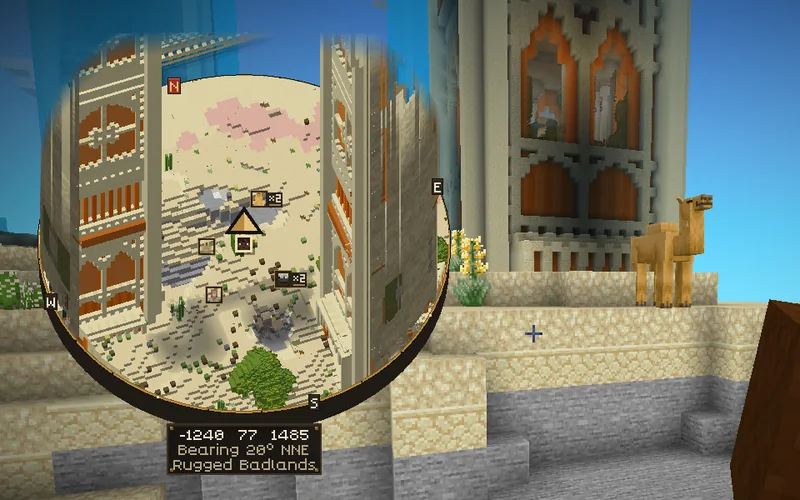
Change the minimap in the settings drawer: open the world map with M, then press T or choose Settings, and open the Minimap group. F1 hides the minimap together with the rest of the game's HUD.
Quick Tune#
Hold M during play for about a quarter of a second to open Quick Tune: the minimap grows so you can see it better.
- Scroll to change the minimap's zoom.
- Shift and scroll to change its tilt, in 5° steps.
- Release M to keep the change. Esc, opening another screen or hiding the minimap cancels it.
A short tap of M opens the world map instead. Quick Tune leaves moving and looking around active, so you can tune the map while you walk. It changes the same zoom and tilt as the minimap settings. With Zoom on Auto, the new zoom is kept for what you are doing now (walking, riding, flying and so on).
Auto and Manual zoom#
The minimap has two zoom modes. Set Zoom in the Minimap group, or bind Minimap zoom: Auto/Manual in Minecraft's controls.
| Mode | Behaviour |
|---|---|
| Auto | Chooses a zoom for what you are doing and remembers each change you make for that activity. |
| Manual | Keeps one zoom (Manual zoom, 160 blocks across by default) whatever you do. |
During play, = zooms the minimap in and - zooms it out, one step at a time. The steps are 32, 48, 64, 96, 128, 192, 256, 384 and 512 blocks across. These keys never act on the world map or other screens.
Auto starts with these widths, measured across the minimap in blocks. Each one changes when you zoom with the keys or Quick Tune during that activity.
| Activity | Starting width |
|---|---|
| Walking or standing | 128 |
| Sprinting | 160 |
| Riding | 256 |
| Flying | 384, wider at high speed |
| Combat | 64 |
| In a cave | 64 |
| Inside a building | 32, or fitted to the room |
Combat mode. When a hostile mob comes close or you take a hit, the minimap closes in on the fight. While you fly, a brief encounter does not snap the map closer.
Faster travel is kept at least as wide as slower travel, so starting to sprint never zooms closer than walking. Auto waits briefly before it follows a change of activity, keeps the old zoom until most of the new view can be drawn, and then eases across. Entering a room or cave changes the zoom at once. Zoom to fit the room in the Caves & rooms group decides whether a room is framed automatically.
While flying#
When you fly or ride fast, you can outrun the ground your game has loaded. While flying in the Minimap group decides what the minimap frames then:
| Option | What the minimap shows |
|---|---|
| Far | Your zoom, always; parchment shows past the loaded ground. |
| Balanced | The default. Halfway between your zoom and the ground that is already drawn. |
| Loaded | Zooms in to the ground that is already drawn, so you see terrain rather than parchment. |
Over ground you have explored before, every option shows your full zoom. It never changes your saved zoom levels.
View and orientation#
The minimap starts in the top-right corner, 512 px wide, with Facing up orientation and a 55° tilt.
- Orientation: North up keeps north at the top, Facing up turns with you, and Fixed uses Fixed angle (45° by default).
- Tilt: how steeply the minimap looks down, from 25° to 85°. The world map opens at the minimap's tilt.
- Position and Size: any corner, from 192 to 1024 px. The minimap never grows larger than the game window allows.
With Look & sound > Style: Full, the minimap is a round island with a compass collar and brass ornament. Minimal keeps the icons and heading chevron but draws a plain rectangle. Minimap edge chooses how the round minimap's cut side looks where ground or buildings stand at its edge: Strata, Ink, Mirror or Off.
Info plaque adds a small plaque under the minimap with your coordinates, and optionally the biome and the day and time. Compass heading shows your heading in degrees, compass points or both.
The minimap does not take clicks or drags. Use Quick Tune for zoom and tilt, and the settings drawer for everything else.
Caves, trees and buildings#
With Interior view on Automatic (the default), the minimap follows the level you are on. Underground, it shows your cave; under trees, it opens the canopy above you; inside a building, it shows the floor you stand on. The world map explains the cuts and how to choose a level yourself.
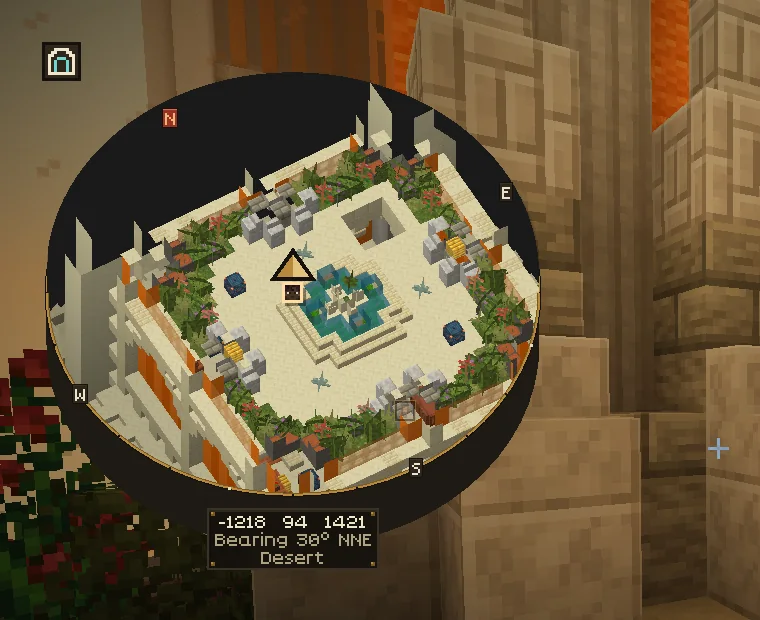
On boats, minecarts and living mounts, the minimap treats the world around you as usual. On a moving build, such as a Create contraption, a Create Aeronautics airship or a Sable ship, the build's own roof does not count as cover, so you keep the outside view of your journey. Supported vehicles appear on both maps.
Radar on the minimap#
The minimap shows players, mobs and pets from the mob radar. Minimap shows in the Radar group keeps it readable: All, Threats (no passive mobs) or Minimal (players, bosses and pets, plus hostile mobs within 16 blocks). Mob faces show within Faces within (32 blocks by default); farther or crowded mobs become small marks.